
-
-
Während der Aktualisierung ist das System nicht verfügbar. -
Die Benutzeroberfläche des Head Units ist über den Webbrowser erreichbar unter https://<System IP>
-
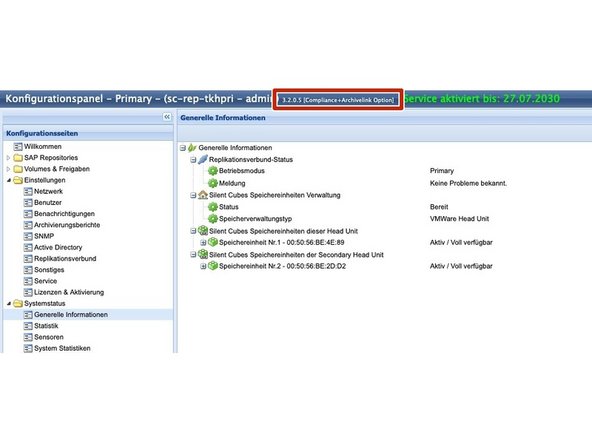
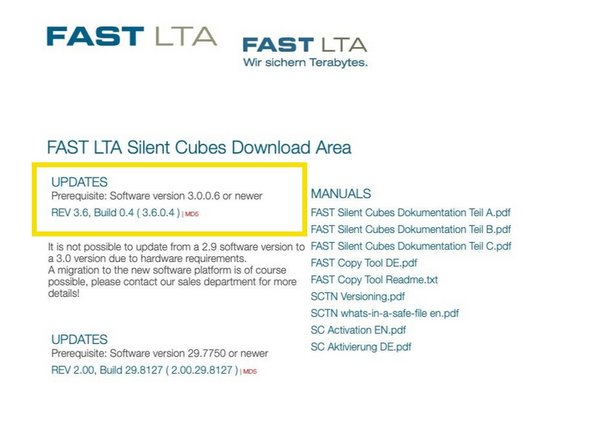
Prüfen Sie, welche Softwareversion aktuell auf dem System installiert ist. Für ein Update muss mindestens die Softwareversion 3.X 3.0.0.6 sein.
-
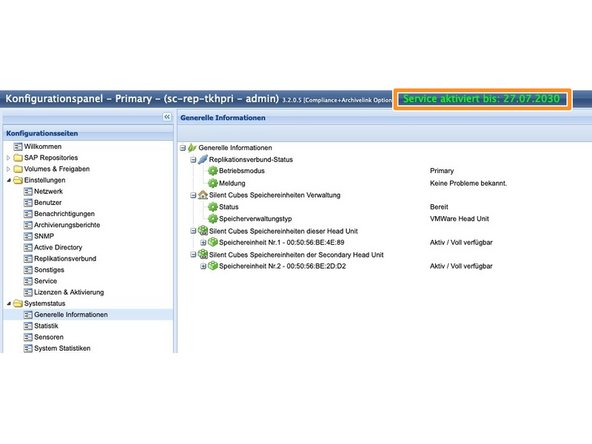
Überprüfen Sie, ob das System noch in Betrieb ist. Wenn das System nicht mehr in Betrieb ist, können Sie es nicht aktualisieren! -
Laden Sie die benötigte Softwareversion vom FAST Update Server herunter. http://swupdate.fast-lta.net
-
Entpacken Sie die .tar-Datei nicht. Die Datei wird automatisch vom System entpackt und geprüft.
-
-
-
Stoppen Sie die Datenspeicherung im System vor dem Update
-
Ein Downgrade des Systems auf eine ältere Version ist nicht möglich.
-
Vor dem Update sollten die ausstehenden Dateien auf 0 stehen. Diese Dateien befinden sich ausschließlich im Cache des Masters Head Unit. Das Update kann mit ausstehenden Dateien durchgeführt werden, es besteht jedoch die Gefahr, dass diese Dateien bei einem Problem während des Updates verloren gehen Gehäuse.
-
-
-
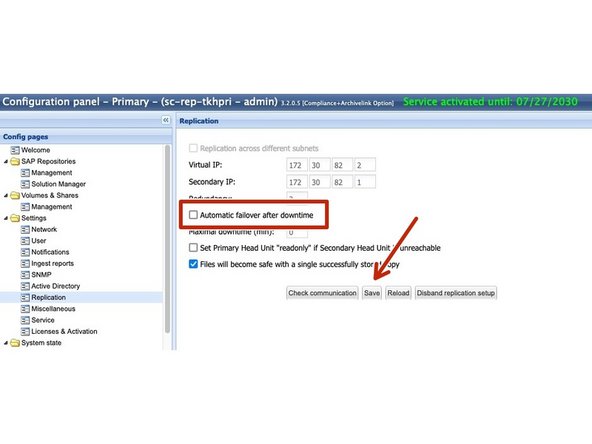
Bei replizierten Systemen muss folgendes angehakt werden. Falls die Checkbox Automatisches Failover gesetzt ist, entfernen Sie diese bitte und speichern Sie dies mit -> Speichern.
-
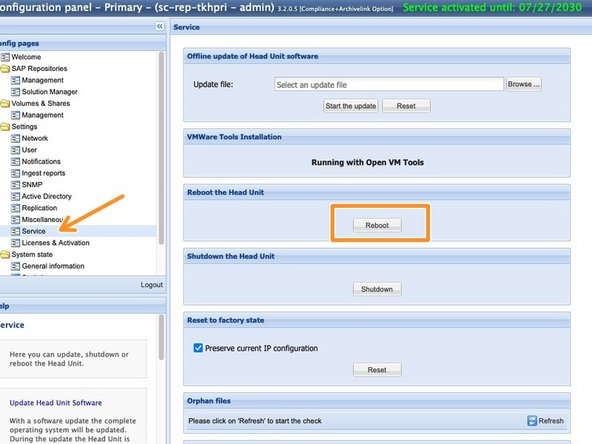
Starten Sie Primary und Secondary Head Unit vor dem Update neu.
-
In Gehäuse eines replizierten Systems mit Primary und Secondary Head Unit müssen Sie zuerst das System Secondary aktualisieren. Wenn das System Secondary bereit ist, können Sie mit dem System Primary beginnen.
-
-
-
Bei einem einzelnen System können Sie direkt mit Ihrem Haupt-Head Unit starten. Bei Gehäuse eines replizierten Systems starten Sie nun mit dem Secondary Head Unit.
-
Gehen Sie über https://<System IP> zur GUI des jeweiligen Systems.
-
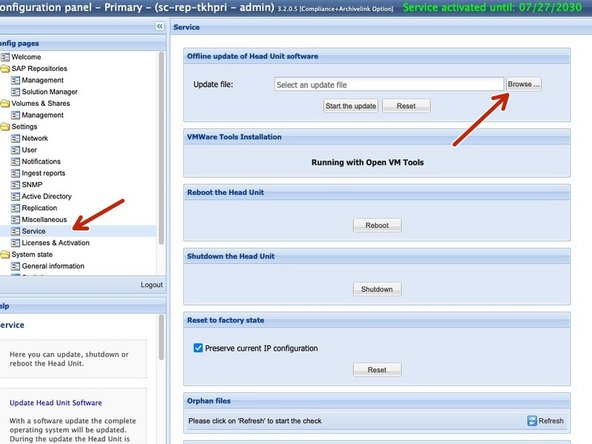
Gehen Sie nun zu Service -> Offline-Update der Head Unit-Software. Klicken Sie auf Durchsuchen und wählen Sie die entsprechende Update-Datei aus.
-
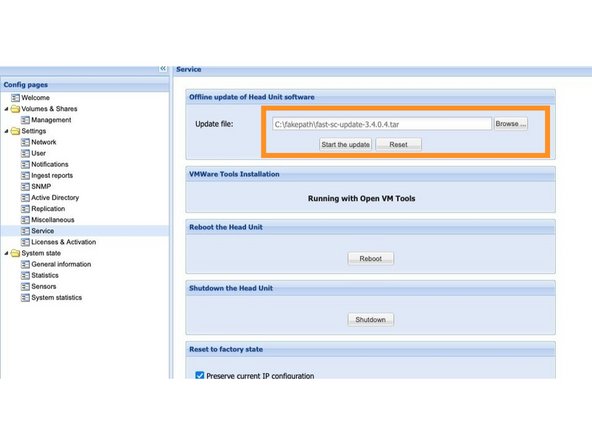
Wenn Sie die richtige Datei ausgewählt haben, klicken Sie auf -> Update starten.
-
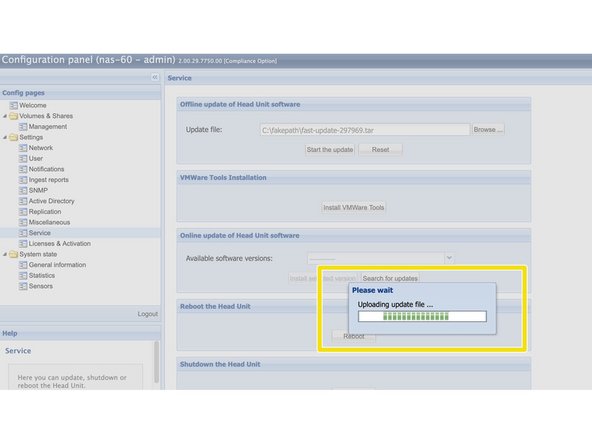
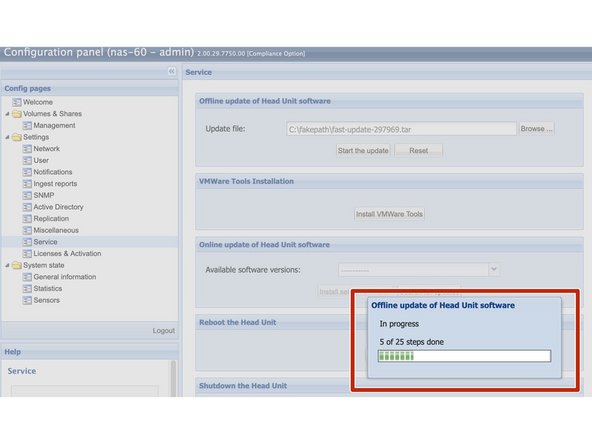
Die Update-Datei wird nun auf Head Unit hochgeladen. Dies kann einige Minuten dauern.
-
-
-
Abhängig von der Softwareversion, der verwendeten Hardware und der Anzahl der gespeicherten Dateien dauert das Update normalerweise etwa 15 - 30 Minuten pro Head Unit.
-
Während des Updates darf das System nicht neu gestartet oder von der Stromversorgung getrennt werden. -
Manchmal reagiert die Webseite während des Updates nicht mehr. Bitte aktualisieren Sie die Webseite und warten Sie einfach, bis die Schaltfläche zum Neustart angezeigt wird.
-
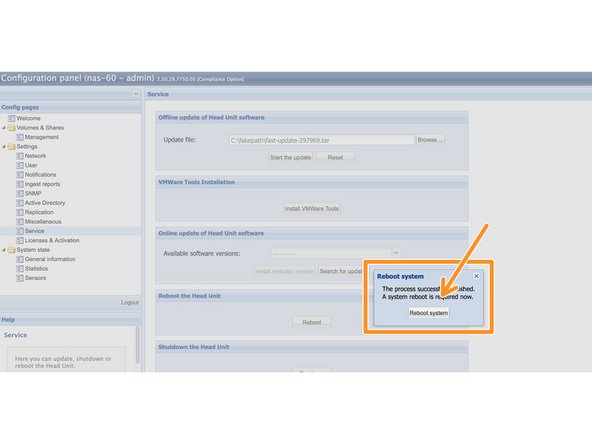
Wenn das Update abgeschlossen ist, werden Sie aufgefordert, den Computer neu zu starten. Bitte klicken Sie hier -> Systemneustart
-
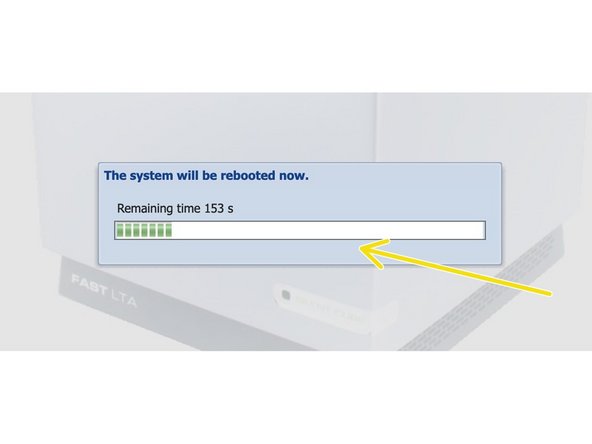
Warten Sie, bis das System neu gestartet wurde.
-
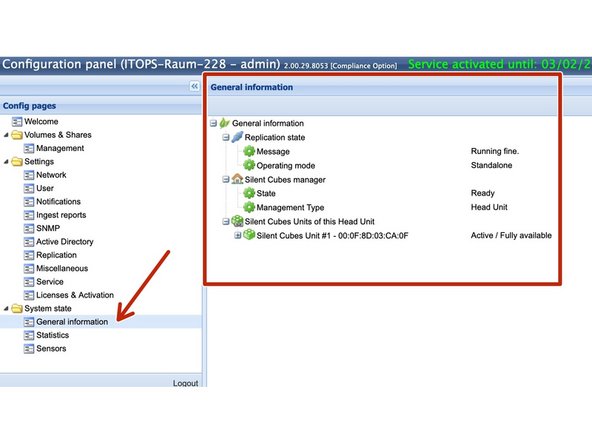
Wenn Sie ein einzelnes System haben, ist das Update jetzt abgeschlossen. Überprüfen Sie das System unter Allgemeine Informationen. Hier sollte jetzt wieder alles grün sein.
-
-
-
Wenn das Update von Secondary Head Unit abgeschlossen ist, beginnen Sie mit Primary Head Unit.
-
Führen Sie die Schritte von Schritt 4 und Schritt 5 nun auch für die Maschine Primary aus
-
Warten Sie nach Abschluss der Aktualisierung einige Minuten, bis das System neu gestartet und erneut synchronisiert wurde.
-
Überprüfen Sie das System unter Allgemeine Informationen. Hier sollte jetzt wieder alles grün sein.
-
Das Update beider Head Units ist nun abgeschlossen.
-


Team

